
Chrome Extension
The TrueTracked Chrome extension shows your TrueTracked numbers inside your ad managers, next to every campaign, ad set and ad. You see your first-party sales, revenue, ROAS and profit where you decide what to scale or cut, without switching tabs.
Read-only and safe for your ad accounts. The extension only reads which ad account, rows and dates are on the page. It never changes your campaigns, budgets or settings, and it does not use any ad platform's API.
What you need
- Google Chrome on a computer.
- A TrueTracked account with your store and ad accounts connected. See Integrations.
Step 1: Install the extension
Install it from the Chrome Web Store: TrueTracked: Ad Tracking & Attribution. You can also open it from your dashboard: Settings → Integrations → Chrome Extension → Install.
Click Add to Chrome, then pin TrueTracked from the puzzle icon in Chrome's toolbar so it is easy to reach.
Step 2: Connect your account
- Click the TrueTracked icon in the toolbar, then Connect your account.
- TrueTracked opens in a new tab. Log in if needed and approve the connection once.
- Go back to the extension. It shows Connected, your email and how many workspaces you can see.
There is no API key to copy. The extension gets its own access to your account, so it keeps working when you log out of the dashboard.
Step 3: Open your ad manager
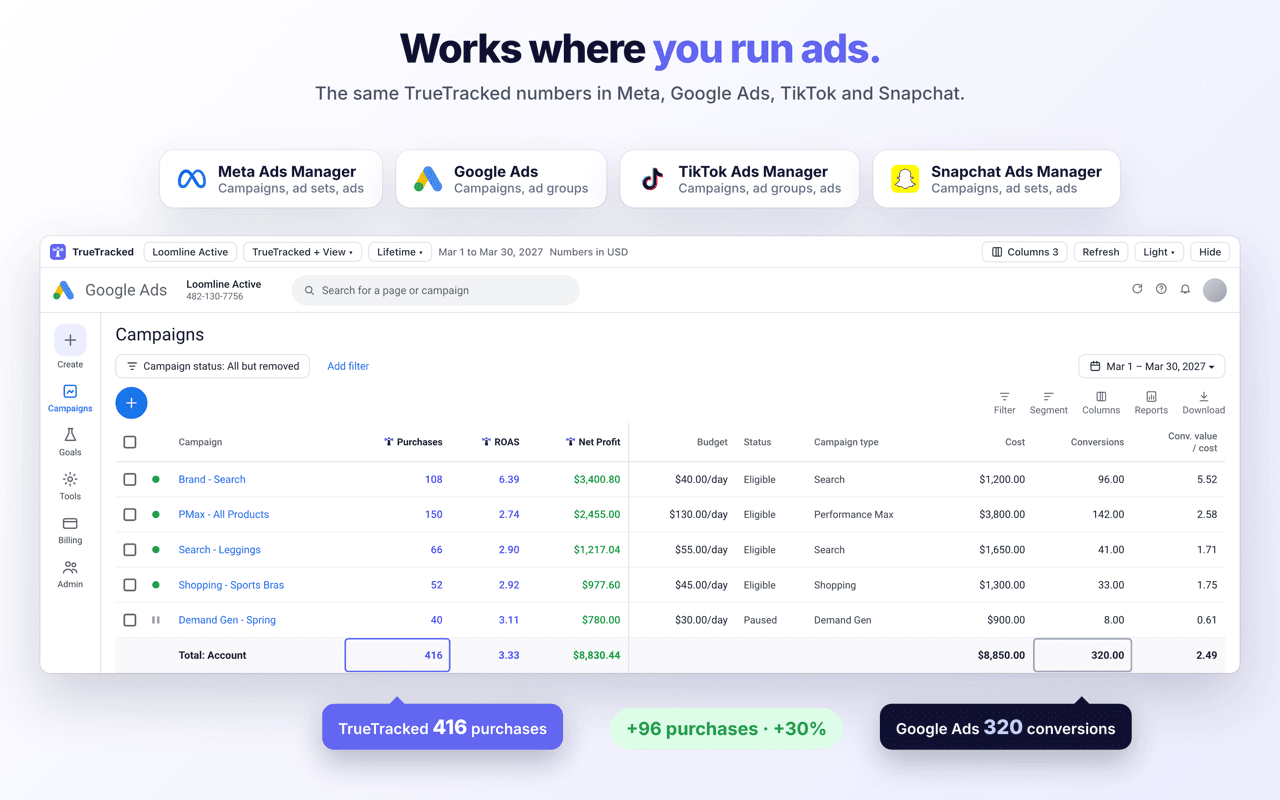
Open Meta Ads Manager, Google Ads, TikTok Ads Manager or Snapchat Ads Manager as usual. TrueTracked finds the ad account on the page, matches it to the workspace it is connected to, and adds your numbers to the table. The dates follow the date range you pick in the ad manager.
Where it works
| Ad manager | Levels |
|---|---|
| Meta Ads Manager | Campaigns, ad sets and ads |
| Google Ads | Campaigns and ad groups |
| TikTok Ads Manager | Campaigns, ad groups and ads |
| Snapchat Ads Manager | Campaigns, ad sets and ads |
What you see
- Purchases, revenue, ROAS, CPA, profit and net profit for every row, plus a totals row.
- New and returning customers: purchases, revenue, ROAS and CPA for each.
- Leads and emails captured, with cost per lead.
- The funnel: sessions, page views, product views, add to carts and checkouts, with the cost of each step.
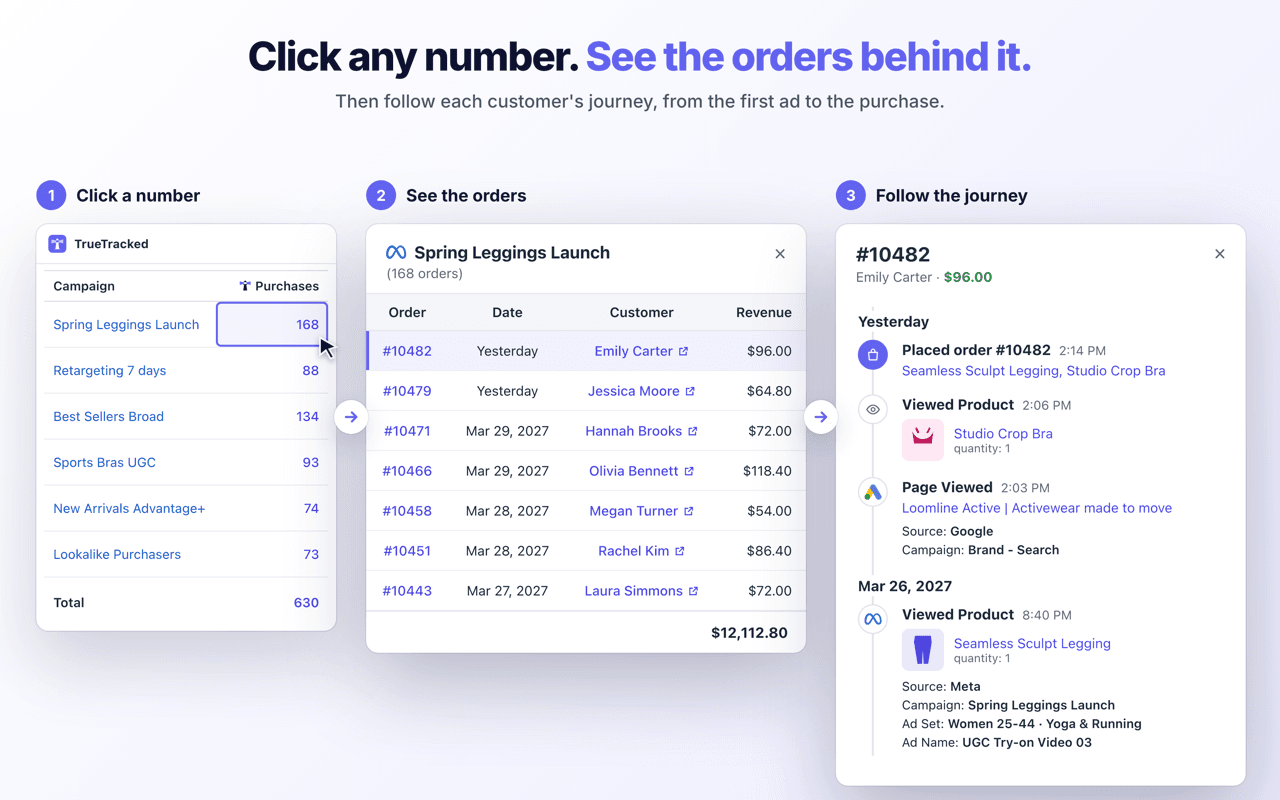
Click any number to see the orders or contacts behind it, then open a customer's full journey, the same as in your dashboard.
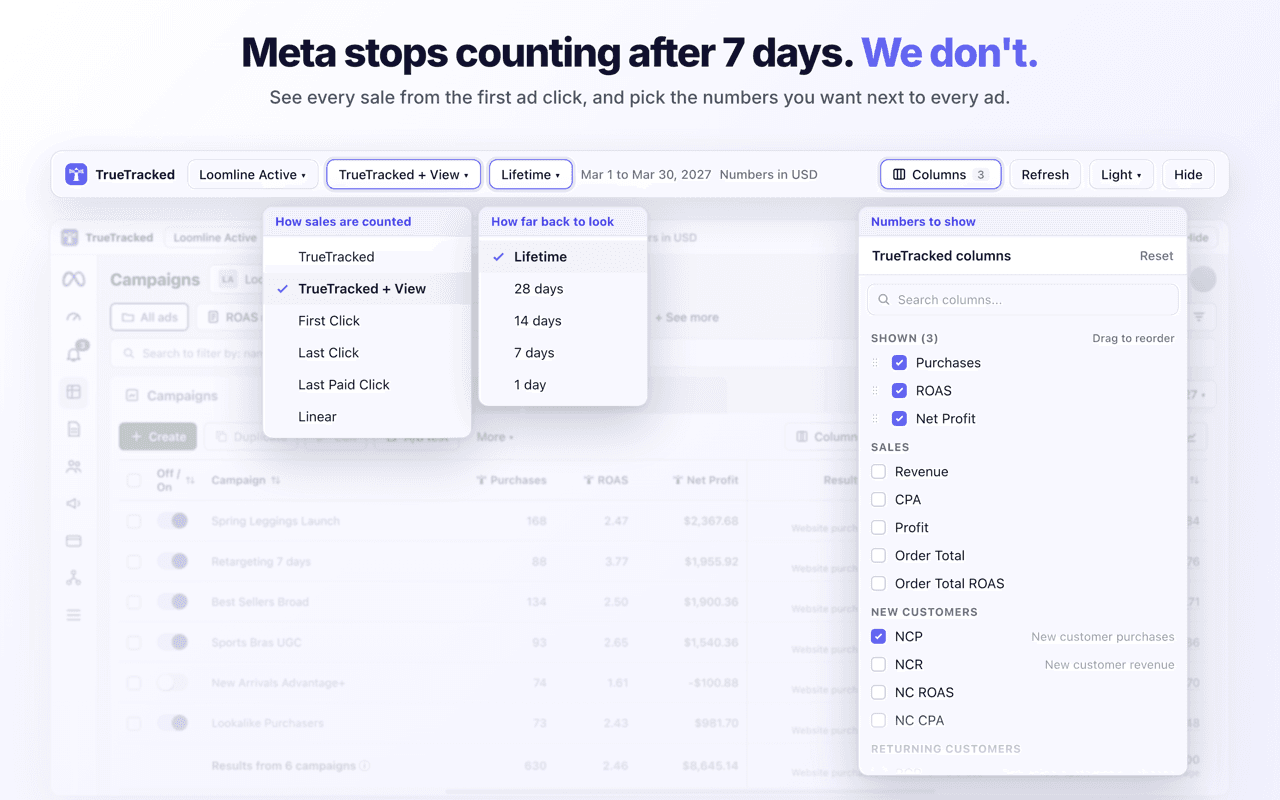
The bar above the table lets you choose the attribution model (TrueTracked, First Click, Last Click, Last Paid Click, Linear and more) and the attribution window, and show, hide or reorder the columns. It comes in light or dark.
Turn it off or disconnect
- To hide the numbers for a while, click the TrueTracked icon and switch off Show on ad managers.
- To remove access, click Disconnect in the same window.
Troubleshooting
- No TrueTracked columns: check the extension shows Connected and that Show on ad managers is on. The ad account on the page must be connected in a TrueTracked workspace you can open.
- Google Ads rows show dashes: Google only shows campaign and ad group ids when its ID column is on. Add the Campaign ID or Ad group ID column in Google Ads. The TrueTracked bar tells you when it is missing.
- TikTok Smart+ ads show dashes: on TikTok's Ads tab, Smart+ ads don't show the ids of the ads TikTok creates under them, so they can't be matched yet. Campaign and ad group rows work.
- Totals show dashes: the totals cover exactly the rows the ad manager lists. When that can't be known yet, they show a dash. Hover it to see why.
- You installed an early test version by hand: remove it on chrome://extensions, then install from the Chrome Web Store so it updates on its own.